Copyright © 2026 - orienthink Team. All Rights Reserved
Information from your device can be used to personalize your ad experience.

Copyright © 2026 - orienthink Team. All Rights Reserved
Information from your device can be used to personalize your ad experience.
BigCommerce for WordPress splits storefront and commerce. See how it works, what it can’t do, and run seven fit checks before you commit. Read the guide.
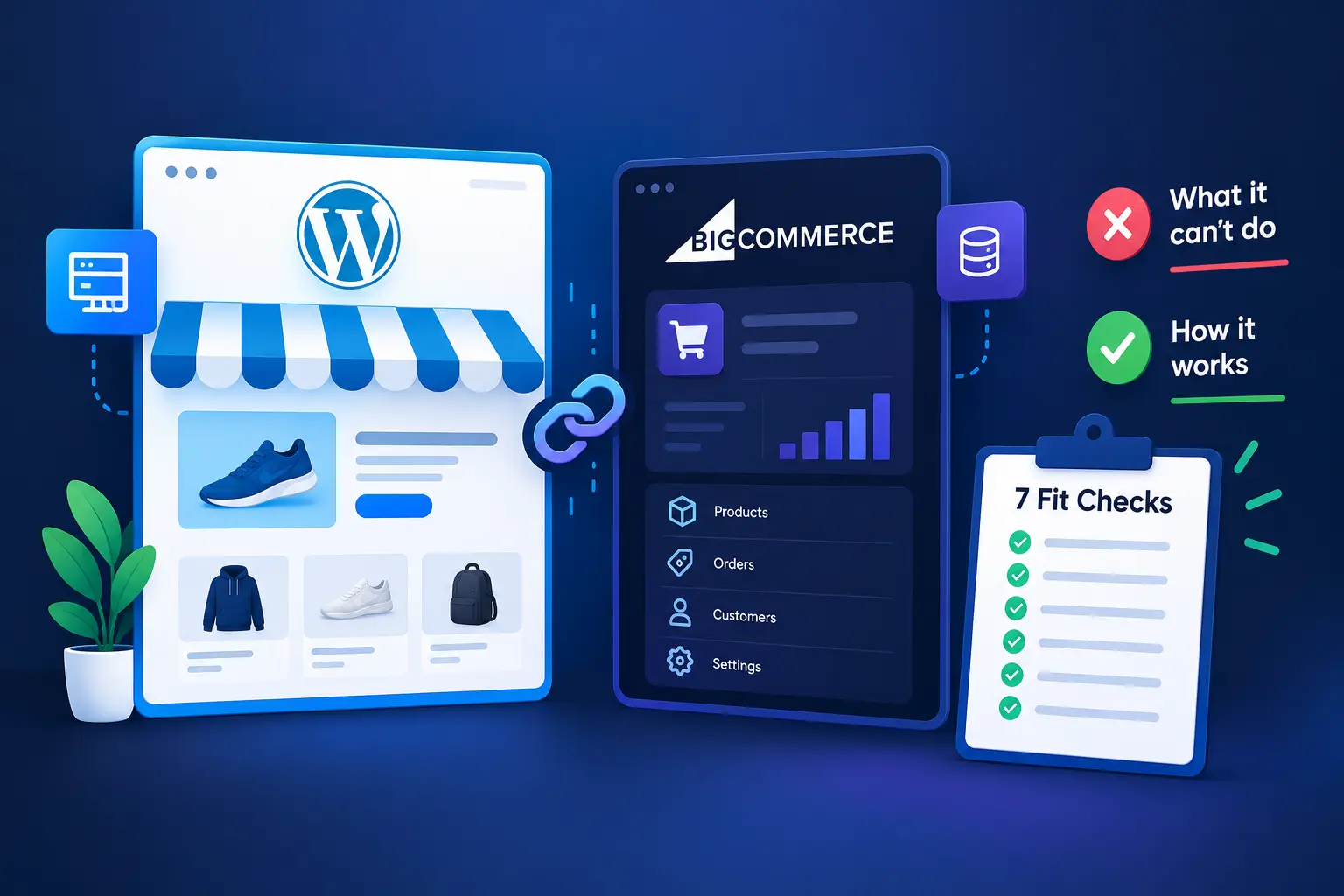
BigCommerce for WordPress lets you keep WordPress as the storefront while BigCommerce runs the commerce engine behind it. That split solves real problems for content-driven sites, but it also creates limits that many setup guides skip, from unsupported payment gateways to a sync that is not real time. This guide explains how the plugin works, how to place products in your pages, what it supports, how to set it up, and seven checks to run before you commit.
BigCommerce for WordPress is an open source plugin that connects your WordPress site to a BigCommerce store through the BigCommerce API. According to BigCommerce’s developer documentation, the plugin pulls product data into WordPress as a custom post type, a WordPress content type stored in the standard post tables. That design lets you embed products in posts and pages like any other content.
The practical result is a division of labor. WordPress controls the storefront, including themes, page layouts, and content, while BigCommerce controls the commerce engine. Most store options, including shipping, taxes, and payment gateways, are managed in the BigCommerce admin, and order data stays on BigCommerce servers, where you can view it in the control panel or reach it through the API with custom code.
With BigCommerce for WordPress, shoppers can be sent to a cart page or straight to checkout, and the checkout itself is a BigCommerce page loaded in an embedded iframe that you can style to match your site. Because the iframe sits inside your pages, shoppers stay on your WordPress domain throughout, and the checkout benefits from BigCommerce’s built-in security and PCI compliance.
The table below shows where each part of the store lives and who manages it.
| Item | Where it lives | Managed in |
| Products | WordPress database, as a custom post type | BigCommerce catalog |
| Product pages and layout | WordPress theme and editor | WordPress |
| Orders | BigCommerce servers | BigCommerce orders view |
| Shipping, taxes, payment gateways | BigCommerce | BigCommerce admin |
| Checkout | BigCommerce page embedded in WordPress | BigCommerce |
Read the last column as a list of responsibilities. Anything managed in BigCommerce is something you will not maintain in WordPress, while anything managed in WordPress is yours to design and host. As a result, redesigning a product page usually leaves order data untouched.
Each WordPress site connected through BigCommerce for WordPress is treated as a channel in BigCommerce. Orders from your WordPress store appear in the BigCommerce orders view labeled with their channel, and inventory is tracked centrally, so a sale on another channel also reduces stock on your WordPress store.
Example: A food blog adds a shop for spice blends. The author keeps publishing recipe posts in WordPress and embeds product blocks inside them, while stock, shipping rules, and tax settings live only in BigCommerce.
Once products sync into WordPress through BigCommerce for WordPress, each one has a visibility state that decides whether shoppers can see it. According to BigCommerce’s support documentation, when a product is listed, its WordPress post is set to Published and its product detail page becomes public, while a hidden product no longer appears on your WordPress front end. Pre-order and non-purchaseable availability settings are also supported, so a product can appear in your catalog before it is ready to buy.
To place products inside content, BigCommerce for WordPress gives you an embed tool and Gutenberg blocks. With the embed tool, you select one or more products and click Embed Product(s), and the plugin generates a shortcode for you. A single selected product displays in a large layout with product details, which suits a featured item inside a blog post.
BigCommerce for WordPress offers several building blocks, and choosing the right one depends on what you want to show. The table below matches common goals to the documented blocks and shortcodes.
| Goal | Documented tool |
| Show products by ID, SKU, or category | Product shortcode with id, sku, or category |
| Find products by a search term | Product shortcode with search |
| Show one attribute, such as a title or add-to-cart button | Component shortcode or Product Components block |
| Display customer reviews | Product Reviews block |
| Show checkout, login, or order history | Checkout, Login Form, and Order History blocks |
In practice, the shortcodes suit developers and page-builder users, while the blocks suit editors working visually in Gutenberg. Because BigCommerce also publishes the block source code on GitHub, a developer can use it as a starting point for custom blocks. These tools display data the plugin has already imported, so a change in BigCommerce reaches your pages only after the next sync.
Example: A recipe post about sourdough could use the product shortcode with a SKU to show the featured flour, then a component block with the add-to-cart button beside the recipe card. The reader can add the item to the cart without leaving the article.
Most guides repeat the supported feature list and stop there. BigCommerce’s documentation also lists what the plugin does not support, and those gaps often decide whether the BigCommerce WordPress plugin suits a project. BigCommerce for WordPress has a broad supported list, covering variants, bundles, promotions, shopper accounts, wishlists, and abandoned cart recovery, so the gaps matter most when your store relies on a specific behavior.
The table below pairs the documented supported features of BigCommerce for WordPress with the documented gaps, so you can compare them against your own requirements.
| Supported | Not supported |
| Product variants, pick lists, and bundles | Persistent cart |
| Promotions and coupon codes | Cart preview |
| Shopper accounts, wishlists, abandoned cart recovery | Cart page promotional banners |
| Gutenberg and Classic Editor integration | Product file upload field |
| Faceted search with FacetWP, search with SearchWP | Real-time syncing with catalog updates |
| Multi-site and multi-channel selling | Google Analytics Enhanced Ecommerce |
| ShipperHQ integration and enterprise integrations | Warranty and availability fields |
Notice that several gaps concern the shopping experience rather than the catalog: persistent cart, cart preview, and cart page banners. A store that depends on those behaviors needs a workaround before launch, while a store that mainly publishes content with a few products may never miss them.
Two supported areas of BigCommerce for WordPress are worth highlighting because they affect operations. First, the documentation cites 600 SKUs per product and 250 values for a single option, so a product with more combinations than that would exceed the documented capacity. Second, the plugin lists integrations with ShipperHQ, enterprise systems such as ERP, PIM, OMS, and POS software, and marketing tools like the Facebook Meta Pixel, which suits stores that already run these tools.
Payment support deserves separate attention. BigCommerce lists over 65 payment gateway integrations, but BigCommerce for WordPress does not support all of them. It supports PayPal Checkout, PayPal through Braintree, and non-hosted (API) gateways that work with Optimized One-Page Checkout, while Amazon Pay, AfterPay, Google Pay, and Masterpass are listed as unsupported. If your customers expect Google Pay at checkout, confirm that before you build anything.
BigCommerce’s own pages do not always agree: a support article lists multi-storefront as unsupported, while the plugin’s release notes describe added multi-storefront support. Treat these lists as a snapshot, and check the current documentation and release notes before relying on any single item.
BigCommerce for WordPress fits best when WordPress is already central to your business and you want commerce handled elsewhere. The rules below turn the architecture and the documented limits into a decision, so you can test your own situation against them.
Choose it if:
Look elsewhere if:
If you recognize your project in both lists, test the gaps first. A single unsupported feature can outweigh several advantages of BigCommerce for WordPress, and it is far cheaper to find that out on a staging site than after launch.
One alternative is WooCommerce, which its WordPress.org listing describes as the open-source ecommerce platform for WordPress. The key difference is architecture, not quality, and it determines where your store data lives.
The table below compares the two approaches on three dimensions drawn from each vendor’s own descriptions.
| Dimension | BigCommerce for WordPress | WooCommerce |
| Where commerce runs | BigCommerce platform, with WordPress as the storefront | Inside your WordPress site |
| Where order data lives | BigCommerce servers | Your own site, which WooCommerce says you fully own |
| Extensibility | Open source plugin with theme template overrides | Open source code you can inspect and modify |
The first two rows are the real decision. With BigCommerce for WordPress your products live in WordPress but your orders live on BigCommerce, whereas WooCommerce keeps the whole store inside your site. Neither approach is universally better; the right one depends on whether you want a hosted commerce back end behind a WordPress front end.
Choose BigCommerce for WordPress when you want commerce handled outside WordPress, and choose WooCommerce when you want the whole store inside it. Plans and fees change, so compare current costs on each vendor’s pricing page before deciding. Also weigh your existing tools: BigCommerce’s documentation notes that apps built for BigCommerce storefronts may not work when WordPress renders the store, so check each tool you depend on.
BigCommerce for WordPress setup follows a short sequence, and you need a WordPress site and a BigCommerce store before you begin. The steps below follow BigCommerce’s documentation, with an explanation of what each one does so you know what to expect on screen.
Steps one through four connect the platforms, while steps five through seven shape the store. Check current requirements before installing: the plugin’s GitHub readme lists PHP 7.4 or newer and WordPress 5.8 or newer, while older documentation pages list lower minimums, so confirm the figures with your host and the plugin’s own listing. The readme also recommends the PHP intl extension for better currency formatting.
BigCommerce for WordPress imports products through WP-Cron, WordPress’s built-in scheduler, and WP-Cron needs site traffic to run. On a low-traffic site, syncs can run late because nothing triggers the scheduler. The documented fix is a system cron job that runs the WP-CLI import command, for example every 10 minutes:
*/10 * * * * /usr/bin/wp bigcommerce import products –quiet > /dev/null 2>&1
If the CLI import runs more often than the schedule on the settings screen, the WP-Cron import should never trigger. Later imports update only products that changed since the last run, which keeps frequent syncs light. Because the documentation lists real-time syncing as unsupported, plan for a short delay between a BigCommerce change and the WordPress page. The settings screen also includes a product webhooks option; the documentation does not say it makes syncing real time, so test the timing yourself on staging.
Run these seven checks before you commit to BigCommerce for WordPress. Each one targets a documented limit or a practical risk, and each is cheaper to test on a staging site than to discover after launch.
If a check fails, you can adjust the requirement, choose a workaround such as a different gateway, or pick a different platform. The right choice depends on whether the gap touches revenue, as a missing gateway does, or only convenience.
Example: A shop with 40 simple products and a PayPal-only checkout clears the gateway and catalog checks easily. A store that depends on Google Pay fails to check one before any design work begins.
Treat the first BigCommerce for WordPress build as a test, not a launch. These five steps turn the checks above into a practical plan.
BigCommerce for WordPress rewards teams that test before launch. Run the staging build, trust what the documentation says the plugin cannot do, and you will know whether the split between WordPress and BigCommerce suits your store.
This guide reflects BigCommerce documentation and plugin sources reviewed on October 17, 2026. Plugin features, requirements, and plans can change.
Last updated: October 17, 2026