Copyright © 2026 - orienthink Team. All Rights Reserved
Information from your device can be used to personalize your ad experience.

Copyright © 2026 - orienthink Team. All Rights Reserved
Information from your device can be used to personalize your ad experience.
A comprehensive guide that helps beginners understand how to use the WordPress plugin for inventory management in WooCommerce.
Ensuring accurate product availability is vital for managing a WooCommerce eCommerce site, particularly when your customers place orders 24/7. As your catalog expands, however, it can become cumbersome to update quantities and handle product variations, which can lead to stock inaccuracies and overselling. In this tutorial, you’ll learn how WordPress inventory management works with WooCommerce, how to set up the stock tracking step-by-step, and what tools will help you manage products more efficiently.
Key takeaways:
WooCommerce inventory management refers to the monitoring of the stock that is available and the changes in inventory for a WordPress-powered online store built on WooCommerce. Firstly, WooCommerce has inbuilt inventory options that store owners can utilize to track actual products, add or take away stock, and regulate if the customer can purchase an unavailable product. If, for instance, a retail store stocks 25 coffee mugs, they can automatically subtract that number of mugs every time someone orders them.
Inventory tracking is just the act of keeping track of how many units are available, while inventory management covers restocking, organizing the stock, reporting and making purchases.
SKU (Stock Keeping Unit) is a unique identifier assigned to a product or variation for inventory organization. For instance, a clothing store may have a medium black T-shirt called `TSHIRT-BLK-M`. In the meantime, the quantity of stocks refers to the number of items available, while the status of stocks refers to whether customers are able to order the product.
WooCommerce supports three primary stock statuses:
Inventory management supports WooCommerce store owners to keep their products inventory information up to date, minimize issues with orders caused by inventory, and make informed decisions about inventory replenishment. First, accurate stock records help prevent overselling, which happens when customers purchase more units than your business can fulfill. For example, if your store has five headphones remaining, WooCommerce can update their availability as orders are placed.
Furthermore, organized inventory can have several positive impacts on day-to-day store operations:
As your product catalog grows, these benefits become increasingly useful. A store managing 15 products may update quantities manually, while a store managing hundreds of variations needs a more consistent process.
Yes. WooCommerce includes built-in inventory management settings that allow store owners to track stock quantities, configure backorders, and receive low-stock and out-of-stock notifications. First, these features are available through the standard WooCommerce installation, so beginners can establish basic stock control without immediately installing another plugin.
| Feature | Native WooCommerce functionality |
| Stock tracking | Records product quantities |
| Automatic stock reduction | Updates quantities as orders are processed |
| Stock statuses | Supports in-stock, out-of-stock, and backorder states |
| Low-stock alerts | Sends notifications when configured thresholds are reached |
| Product variations | Supports individual variation inventory |
| Stock reports | Displays quantities and availability in Analytics |
| Bulk inventory editing | May require an additional tool for more convenient workflows |
| Advanced stock history | Depends on additional extensions |
The important distinction is that stock tracking and advanced inventory management are not identical. WooCommerce handles essential stock control, while additional tools can simplify larger or more complex workflows.
Setting up WooCommerce inventory management involves enabling stock tracking, configuring notification thresholds, assigning product quantities, and verifying stock behavior through test orders.
First, open your WordPress dashboard and follow these steps to configure the essential settings.
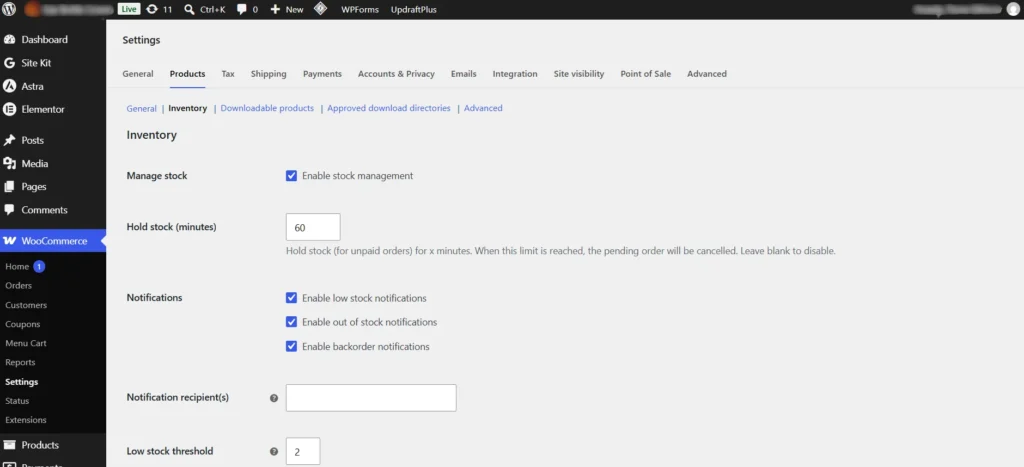
When stock management is enabled, WooCommerce maintains inventory counts and adjusts them as sales occur.
Next, configure notification settings so your store can alert you when products approach their replenishment point.
For example, a store selling phone cases might use a threshold of five units. When tracked inventory reaches that level, the store manager receives a notification. A low-stock threshold is an alert level, not a mandatory reorder quantity. Choose a value that reflects your supplier’s delivery time and typical sales activity.
After enabling global stock management, open Products → All Products and edit the product you want to track.
Under the product’s Inventory section:
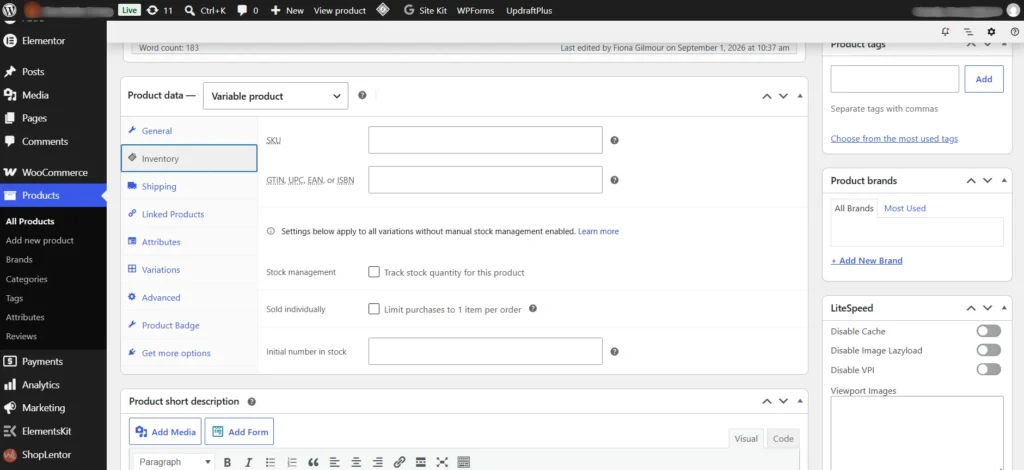
Finally, verify that your settings behave as expected before relying on them for everyday orders. For example, create a test product with a quantity of three units and place a test order using an appropriate testing method. Confirm that the quantity changes correctly and that the product’s availability reflects the remaining stock.
Always back up your website before making substantial inventory changes or installing extensions. A staging environment is particularly useful when testing bulk updates or unfamiliar plugins.
WooCommerce inventory management supports simple products, variable products, and products that do not require physical stock tracking.
A simple product is an item without selectable variations, such as a standard notebook or coffee mug. First, enable stock management in the product’s Inventory section and enter its available quantity. WooCommerce can then update the quantity as orders are processed. For example, if your store has 40 notebooks and a customer purchases four, the recorded quantity decreases to 36 when the order triggers stock reduction.
WooCommerce variable products can use shared product-level inventory or separate stock quantities for individual variations, depending on how stock management is configured.
For example, consider a clothing store selling a T-shirt in two colors and three sizes.
| Variation | Available quantity |
| Black / Small | 8 |
| Black / Medium | 12 |
| Black / Large | 6 |
| White / Small | 5 |
| White / Medium | 10 |
| White / Large | 4 |
| Total | 45 |
If each variation has its own stock quantity, purchasing a black medium T-shirt reduces only that variation’s inventory. Alternatively, product-level stock management can track a shared quantity across applicable variations. This approach is useful when variations draw from the same physical inventory.
Backorders allow customers to purchase products that are currently unavailable, according to the store’s configured settings. WooCommerce provides options to disallow backorders, allow them with customer notifications, or allow them without the same notification. For example, a store waiting for a new shipment of keyboards might permit backorders while clearly communicating the expected fulfillment delay.
Use backorders only when your business can manage the resulting fulfillment expectations. For digital products, physical stock tracking is generally unnecessary unless you have a specific operational reason to maintain quantities.
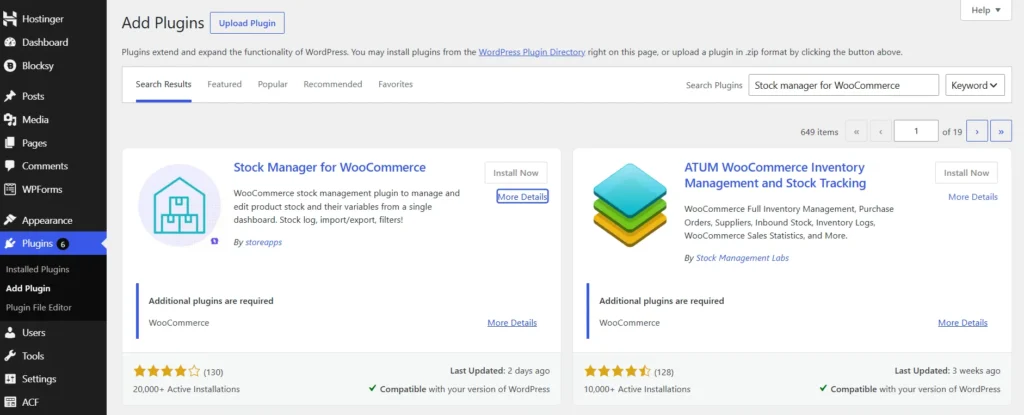
A WooCommerce inventory management plugin is useful when a store needs additional capabilities such as bulk stock editing, inventory history, CSV workflows, or centralized stock management beyond its existing setup.
First, identify the specific task that your current WooCommerce configuration cannot handle conveniently. Then evaluate extensions based on their documented features, compatibility, maintenance, and cost.
| Requirement | Feature to look for |
| Large product catalog | Bulk editing and filters |
| Frequent stock adjustments | Stock history or change logs |
| Spreadsheet workflows | CSV import and export |
| Multiple variations | Variation-level stock editing |
| Inventory monitoring | Centralized dashboards |
| Complex operations | Supplier, warehouse, or purchasing features |
Moreover, verify the plugin’s current pricing, compatibility, update history, support arrangements, and required WooCommerce version before installation. Avoid installing several plugins that perform overlapping inventory functions. Test your chosen extension on a staging site and confirm that it works with your existing checkout and product configuration.
WordPress inventory management for WooCommerce helps store owners track product quantities, maintain accurate availability, and organize stock-related operations. First, WooCommerce’s built-in inventory settings provide a practical starting point for stock tracking, backorders, notifications, and product variations. Additional inventory management plugins can simplify bulk editing, reporting, and more advanced workflows when your store requires them. Ultimately, accurate inventory begins with clear product records, appropriate stock settings, and regular reviews. Take a few minutes to inspect your current WooCommerce inventory configuration, test its behavior, and establish a routine that supports your store as it grows.